Pages

Sunday, 20 April 2025

Waits in Selenium Automation


Waiting Strategies

Perhaps the most common challenge for browser automation is ensuring that the web application is in a state to execute a particular Selenium command as desired. The processes often end up in a race condition where sometimes the browser gets into the right state first (things work as intended) and sometimes the Selenium code executes first (things do not work as intended). This is one of the primary causes of flaky tests.

All navigation commands wait for a specific readyState value based on the page load strategy (the default value to wait for is "complete") before the driver returns control to the code. The readyState only concerns itself with loading assets defined in the HTML, but loaded JavaScript assets often result in changes to the site, and elements that need to be interacted with may not yet be on the page when the code is ready to execute the next Selenium command.

Similarly, in a lot of single page applications, elements get dynamically added to a page or change visibility based on a click. An element must be both present and displayed on the page in order for Selenium to interact with it.

Take this page for example: https://www.selenium.dev/selenium/web/dynamic.html When the “Add a box!” button is clicked, a “div” element that does not exist is created. When the “Reveal a new input” button is clicked, a hidden text field element is displayed. In both cases the transition takes a couple seconds. If the Selenium code is to click one of these buttons and interact with the resulting element, it will do so before that element is ready and fail.

The first solution many people turn to is adding a sleep statement to pause the code execution for a set period of time. Because the code can’t know exactly how long it needs to wait, this can fail when it doesn’t sleep long enough. Alternately, if the value is set too high and a sleep statement is added in every place it is needed, the duration of the session can become prohibitive.

Selenium provides two different mechanisms for synchronization that are better.

Implicit waits

Selenium has a built-in way to automatically wait for elements called an implicit wait. An implicit wait value can be set either with the timeouts capability in the browser options, or with a driver method (as shown below).

This is a global setting that applies to every element location call for the entire session. The default value is 0, which means that if the element is not found, it will immediately return an error. If an implicit wait is set, the driver will wait for the duration of the provided value before returning the error. Note that as soon as the element is located, the driver will return the element reference and the code will continue executing, so a larger implicit wait value won’t necessarily increase the duration of the session.

Warning: Do not mix implicit and explicit waits. Doing so can cause unpredictable wait times. For example, setting an implicit wait of 10 seconds and an explicit wait of 15 seconds could cause a timeout to occur after 20 seconds.

Solving our example with an implicit wait looks like this:
    driver.manage().timeouts().implicitlyWait(Duration.ofSeconds(2));

Explicit waits

Explicit waits are loops added to the code that poll the application for a specific condition to evaluate as true before it exits the loop and continues to the next command in the code. If the condition is not met before a designated timeout value, the code will give a timeout error. Since there are many ways for the application not to be in the desired state, explicit waits are a great choice to specify the exact condition to wait for in each place it is needed. Another nice feature is that, by default, the Selenium Wait class automatically waits for the designated element to exist.


    Wait<WebDriver> wait = new WebDriverWait(driver, Duration.ofSeconds(2));

    wait.until(d -> revealed.isDisplayed());


Customization

The Wait class can be instantiated with various parameters that will change how the conditions are evaluated.

This can include:

  • Changing how often the code is evaluated (polling interval)
  • Specifying which exceptions should be handled automatically
  • Changing the total timeout length
  • Customizing the timeout message

For instance, if the element not interactable error is retried by default, then we can add an action on a method inside the code getting executed (we just need to make sure that the code returns true when it is successful):

    Wait<WebDriver> wait =
        new FluentWait<>(driver)
            .withTimeout(Duration.ofSeconds(2))
            .pollingEvery(Duration.ofMillis(300))
            .ignoring(ElementNotInteractableException.class);

    wait.until(
        d -> {
          revealed.sendKeys("Displayed");
          return true;
        });
Source of info:-selenium.dev

Saturday, 19 April 2025

Setting up the Selenium

 Setting up the Selenium library for your favourite programming language.

First you need to install the Selenium bindings for your automation project. The installation process for libraries depends on the language you choose to use. Make sure you check the Selenium downloads page to make sure you are using the latest version.


Installation of Selenium libraries for Java is accomplished using a build tool.

Maven

Specify the dependencies in the project’s pom.xml file:

        <dependency>
            <groupId>org.seleniumhq.selenium</groupId>
            <artifactId>selenium-java</artifactId>
            <version>${selenium.version}</version>
        </dependency>

Gradle

Specify the dependency in the project build.gradle file as testImplementation:

    testImplementation 'org.seleniumhq.selenium:selenium-java:4.31.0'
    testImplementation 'org.junit.jupiter:junit-jupiter-engine:5.12.1'

Prerequisites for configuring Selenium in Eclipse

Below are the prerequisites for downloading and configuring Selenium in Eclipse:

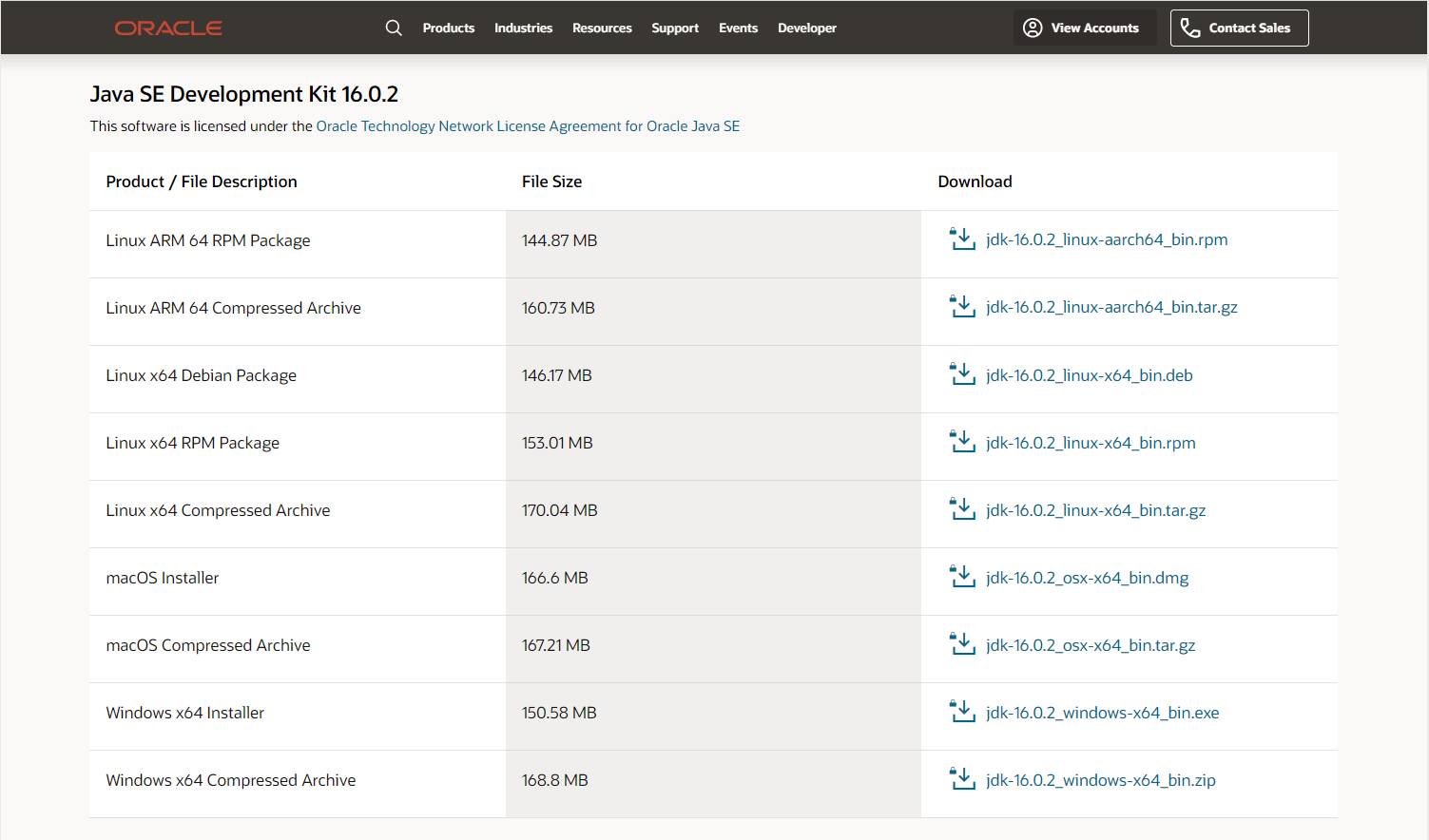
1. Download and install Java SE Development Kit (JDK) 16.0.2.

2. Run the JDK Installer and follow setup instructions.

Install Java

3. Use the following for silent installation:

jdk.exe /s

4. Download and install Eclipse IDE.

Install Eclipse IDE

How to download Selenium in Eclipse

Below are the steps to download Selenium in Eclipse:

Step 1: Download and Install Selenium to be set up in Eclipse.

Step 2: Install Browser Driver.

For Cross Browser Testing, download the relevant Browser Driver – ChromeDriver (for Chrome), GeckoDriver (for Firefox), SafariDriver(for Safari), and InternetExplorerDriver and MSEdgeDriver (IE and Edge respectively).

Step 3: Place these Browser Driver files in a directory that is part of the environment PATH. This will allow a command-line call to the programs to execute them irrespective of the working directory.

Step 4: Install Java Language Bindings


What is Selenium Automation

 What is Selenium Automation & How it works.


Selenium allows users to simulate common activities performed by end-users; entering text into fields, selecting drop-down values and checking boxes, and clicking links in documents. It also provides many other controls such as mouse movement, arbitrary JavaScript execution, and much more.


The Parts and Pieces

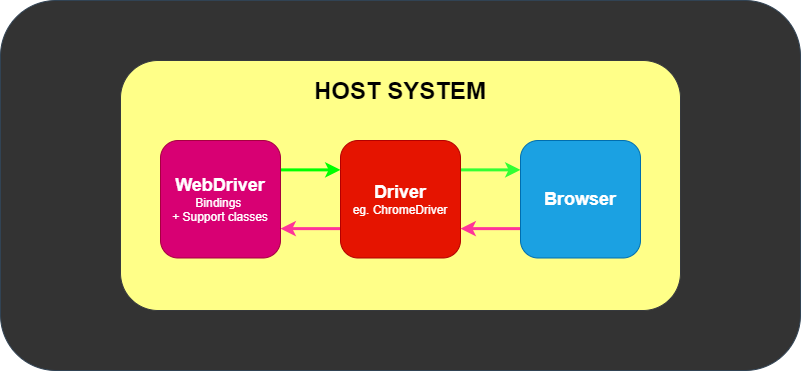
At its minimum, WebDriver talks to a browser through a driver. Communication is two-way: WebDriver passes commands to the browser through the driver, and receives information back via the same route.

Basic Communication

The driver is specific to the browser, such as ChromeDriver for Google’s Chrome/Chromium, GeckoDriver for Mozilla’s Firefox, etc. The driver runs on the same system as the browser. This may or may not be the same system where the tests themselves are executed.

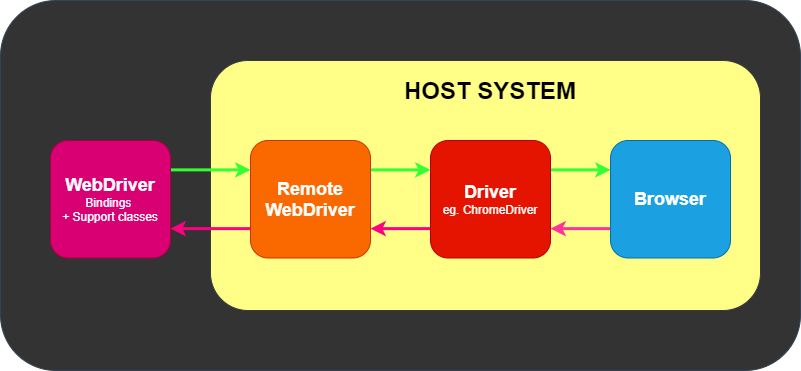
This simple example above is direct communication. Communication to the browser may also be remote communication through Selenium Server or RemoteWebDriver. RemoteWebDriver runs on the same system as the driver and the browser.

Remote Communication

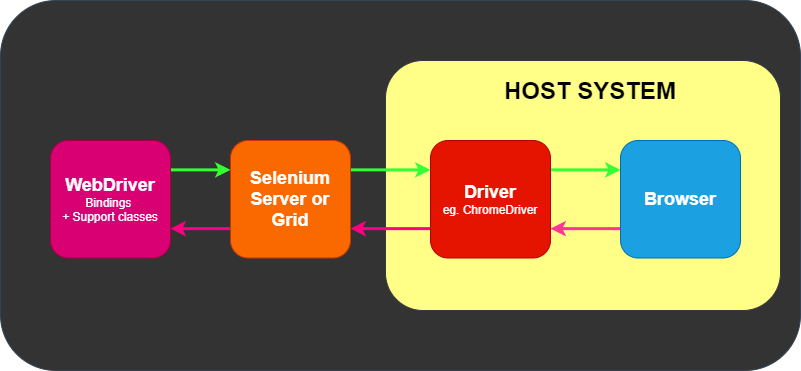
Remote communication can also take place using Selenium Server or Selenium Grid, both of which in turn talk to the driver on the host system

Remote Communication with Grid

What is Selenium Automation

 What is Selenium Automation & How it works. Selenium allows users to simulate common activities performed by end-users; entering text i...