Setting up the Selenium library for your favourite programming language.
First you need to install the Selenium bindings for your automation project. The installation process for libraries depends on the language you choose to use. Make sure you check the Selenium downloads page to make sure you are using the latest version.
Installation of Selenium libraries for Java is accomplished using a build tool.
Maven
Specify the dependencies in the project’s pom.xml file:
Gradle
Specify the dependency in the project build.gradle file as testImplementation:
Prerequisites for configuring Selenium in Eclipse
Below are the prerequisites for downloading and configuring Selenium in Eclipse:
1. Download and install Java SE Development Kit (JDK) 16.0.2.
2. Run the JDK Installer and follow setup instructions.
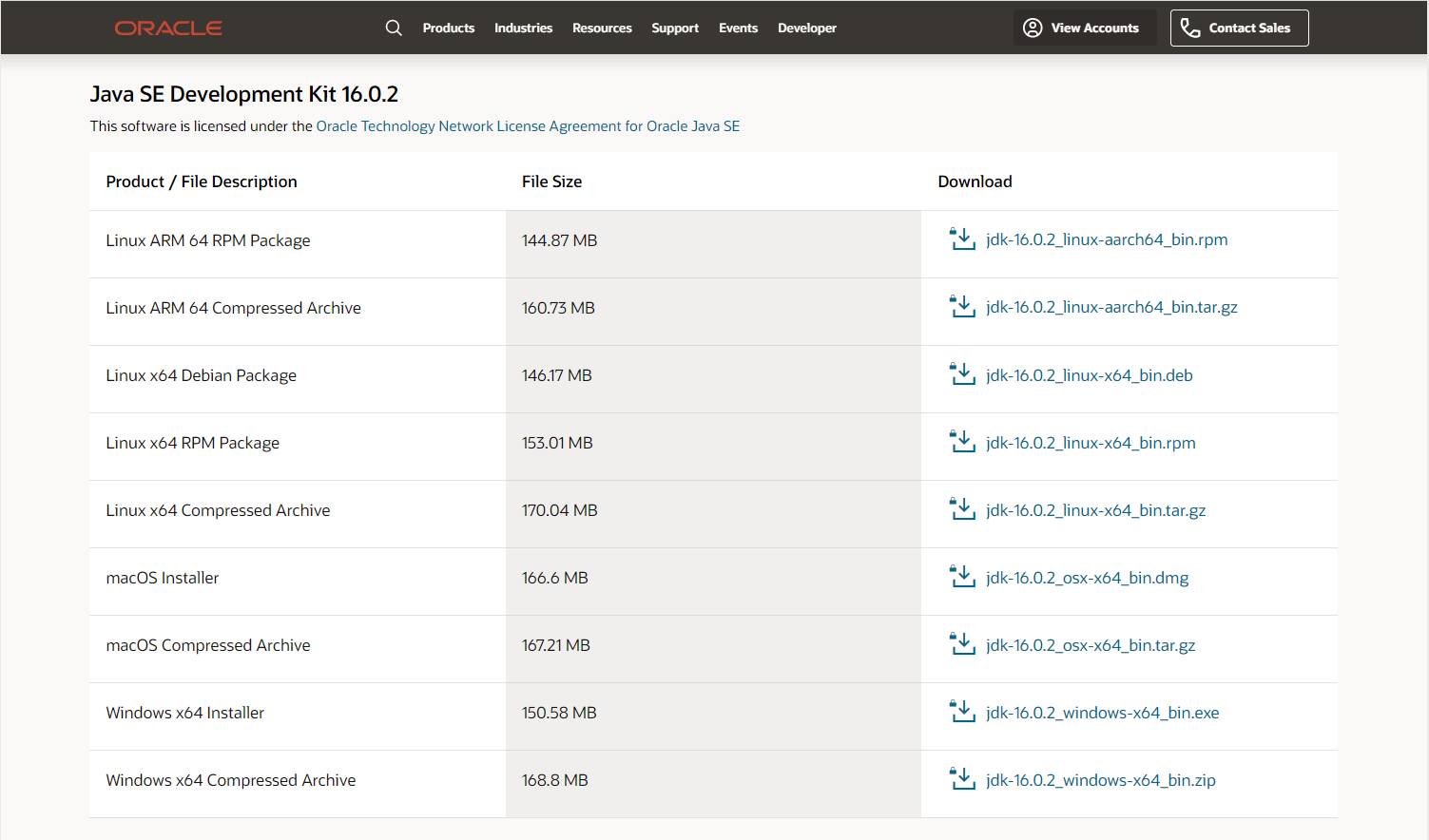
3. Use the following for silent installation:
jdk.exe /s
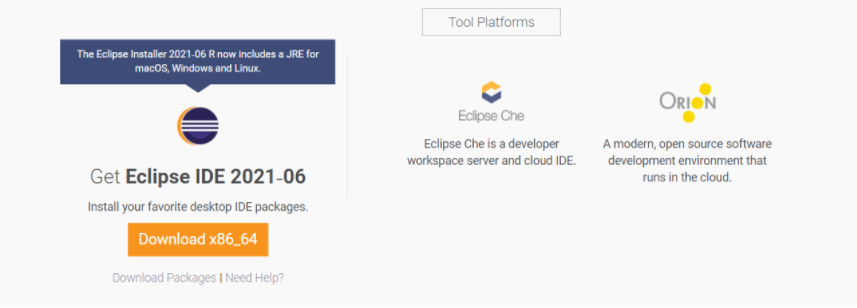
4. Download and install Eclipse IDE.
How to download Selenium in Eclipse
Below are the steps to download Selenium in Eclipse:
Step 1: Download and Install Selenium to be set up in Eclipse.
Step 2: Install Browser Driver.
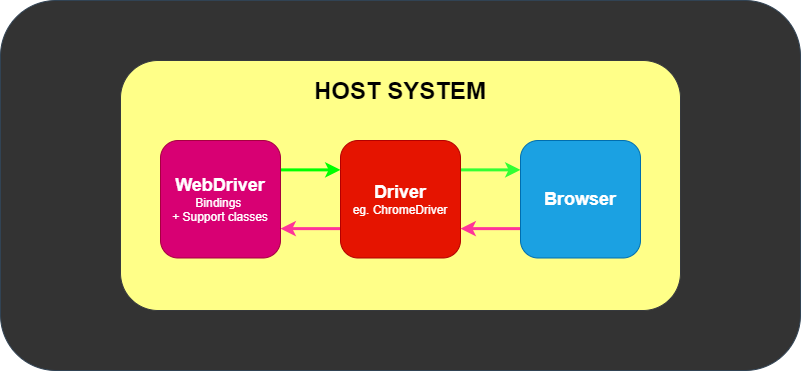
For Cross Browser Testing, download the relevant Browser Driver – ChromeDriver (for Chrome), GeckoDriver (for Firefox), SafariDriver(for Safari), and InternetExplorerDriver and MSEdgeDriver (IE and Edge respectively).
Step 3: Place these Browser Driver files in a directory that is part of the environment PATH. This will allow a command-line call to the programs to execute them irrespective of the working directory.
Step 4: Install Java Language Bindings
- Version 3.141.59 (2018)
- Changelog
- API Docs
No comments:
Post a Comment